Roll cursor over data fields below for more info
|
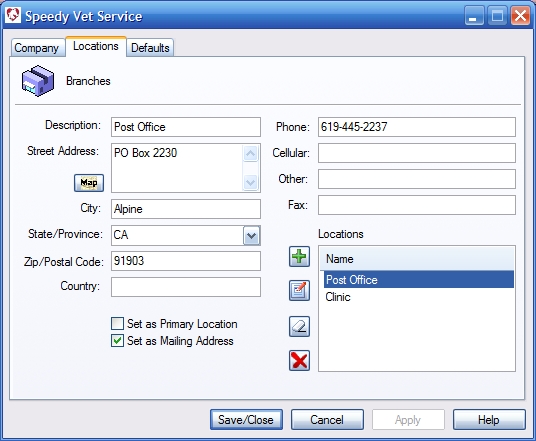
Overview- You may store an unlimited quantity of addresses
for your company locations. You have the option of specifying which type of address is being entered
and how it will be used throughout the program. In order to activate the dialog you must first enter
a description for the address, such as home or office.
Description- Enter a description the address, such as home, or office. Address information- Enter street address and city State/Province- Enter state, select from pull down menu, or right click on arrow to edit/add new state. Map Button- Opens a map web site and pinpoints the location on the map. Requires an active Internet connection. Set as selection- If contact only uses one address select it as primary and mailing address. Primary Location- This is the default location for appointments, and dialogs that display a physical address. Mailing Address- This will be displayed on all forms and correspondences-invoices, statements, etc. Telephone Fields- Enter Phone Numbers here. Location List- Displays your list of locations. Double click to load into form. Add New button- After entering data click to save. Edit Record- Select location from list-click edit to populate dialog. Clear Form- Clears fields in dialog. Delete- Deletes selected location. |
 " " |
We collect information from you when you register on our site or fill out a form.
By using our site, you consent to our website privacy policy.